
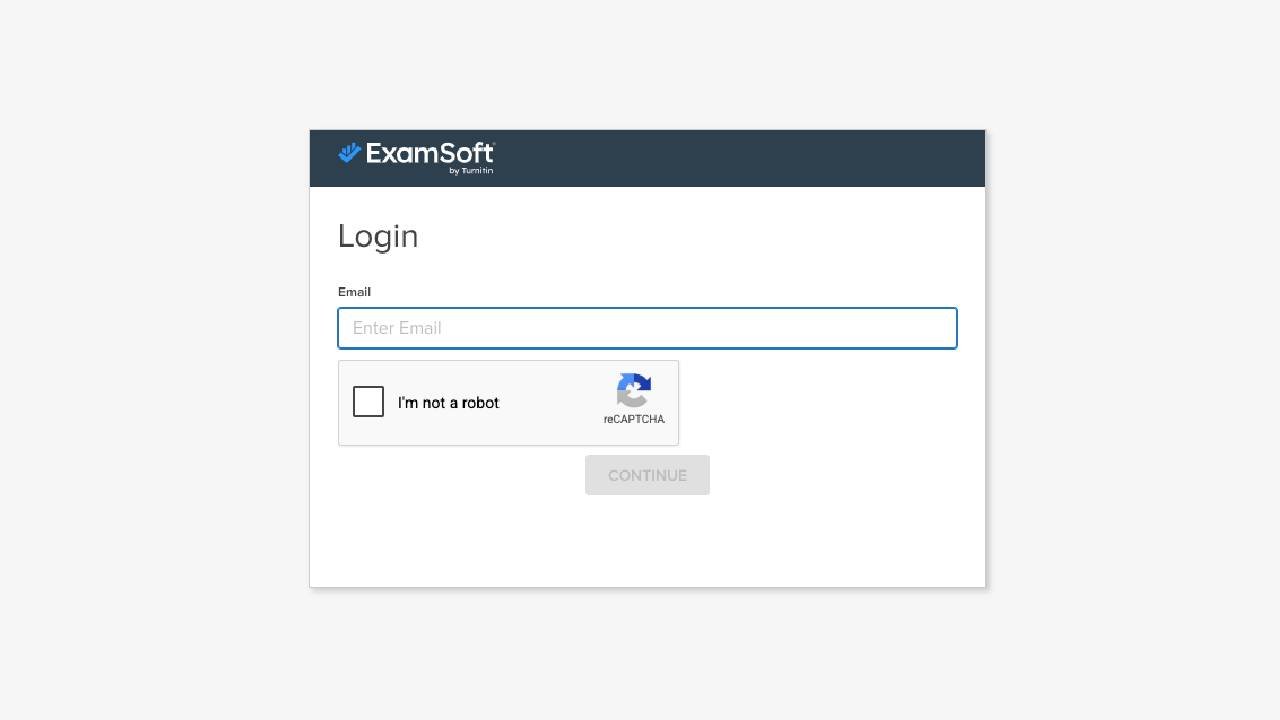
Steps to Examsoft School Account Login :
- Go to the official ExamSoft Login Page
- Login page url : ui.examsoft.io/login
- Select Student/Exam Taker from the user portal options.
- Type your school’s name or Institution ID in the search bar and select it from the drop-down menu.
- Click Continue.
- You will be redirected to your school’s login page.
- Enter your School Email/User ID and Password (often your school’s Single Sign-On / SSO credentials).
Logging into the Examplify Application
If you are opening the desktop or iPad application to download or take an exam, follow these steps:
1.Launch Examplify:Step 1.
Open the Examplify application on your computer or iPad. If it’s your first time opening it, accept the Software License Agreement.
2.Find your Institution:Step 2.
In the Institution ID search bar, type your school’s name or abbreviation. Select your specific school from the drop-down list and click Next.
3.Enter Credentials:Step 3.
A browser window will automatically pop up prompting you to log in. Enter the User ID and Password provided by your institution.
4.Complete Registration:Step 4.
Once the login check is successful, the browser will pass the confirmation back to the app. Your Examplify dashboard will load, showing your name and available exams on the left panel.
⚠️ Quick Troubleshooting Tip: If you log in and see a screen that fails to redirect but gives you a “Copy Link” option, copy that link, paste it directly into a Chrome or Firefox tab, and complete the sign-in there to force Examplify to sync.